
Chart templates
In this chapter
A chart template is a saved set of indicators with a name. Put several charts on the same template and they all show those indicators. Change the template and they all change, in every chartbook. Out of the box there is one template, Default, which holds Volume and Session Times with ETH. New charts open on no template until you choose one for them.
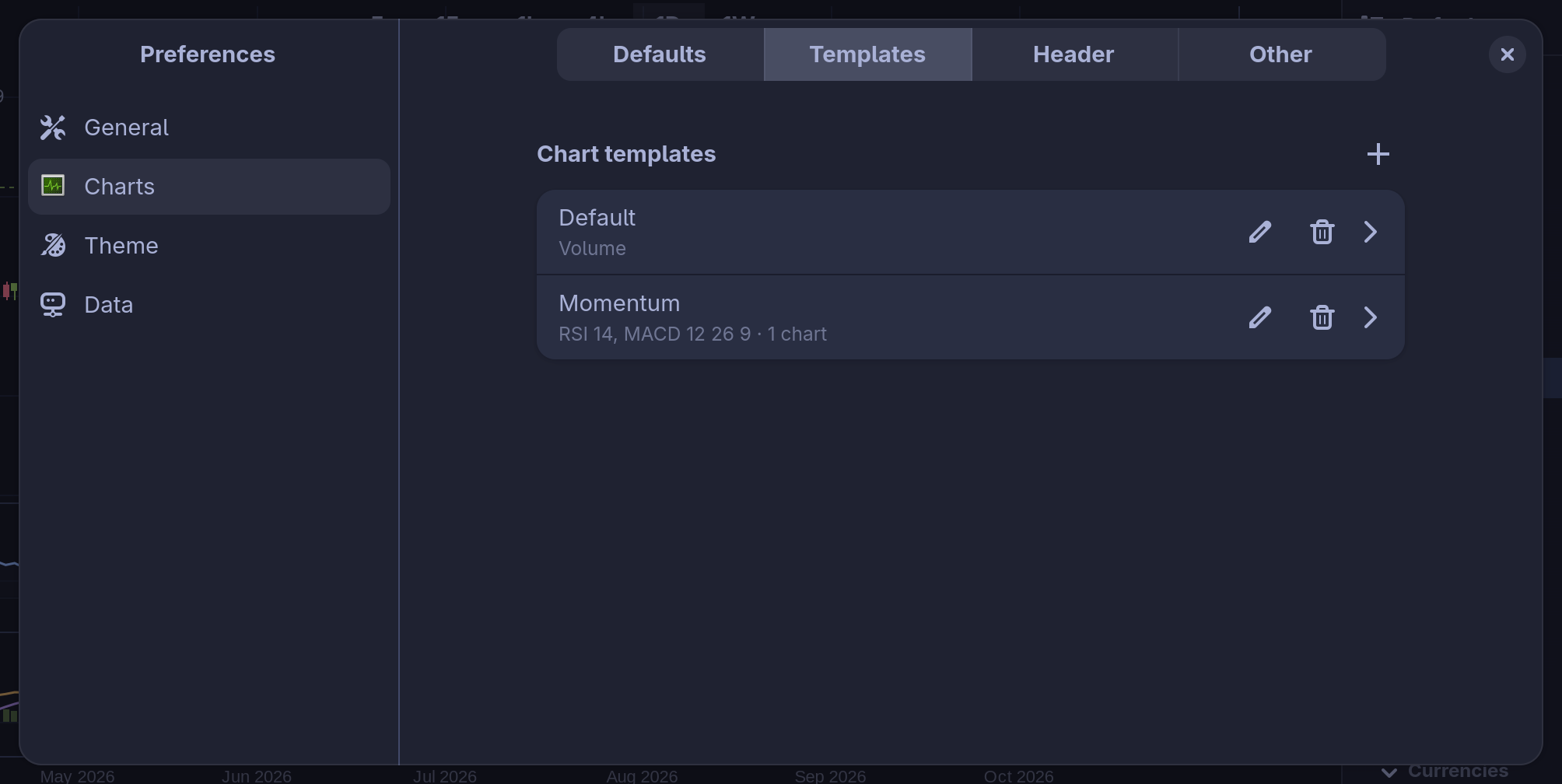
Creating a template
- Open Preferences (Ctrl + ,) › Charts › Templates.
- Click +, type a name and click Create.
- In the template’s editor, add indicators with +, as on a chart’s Indicators page.
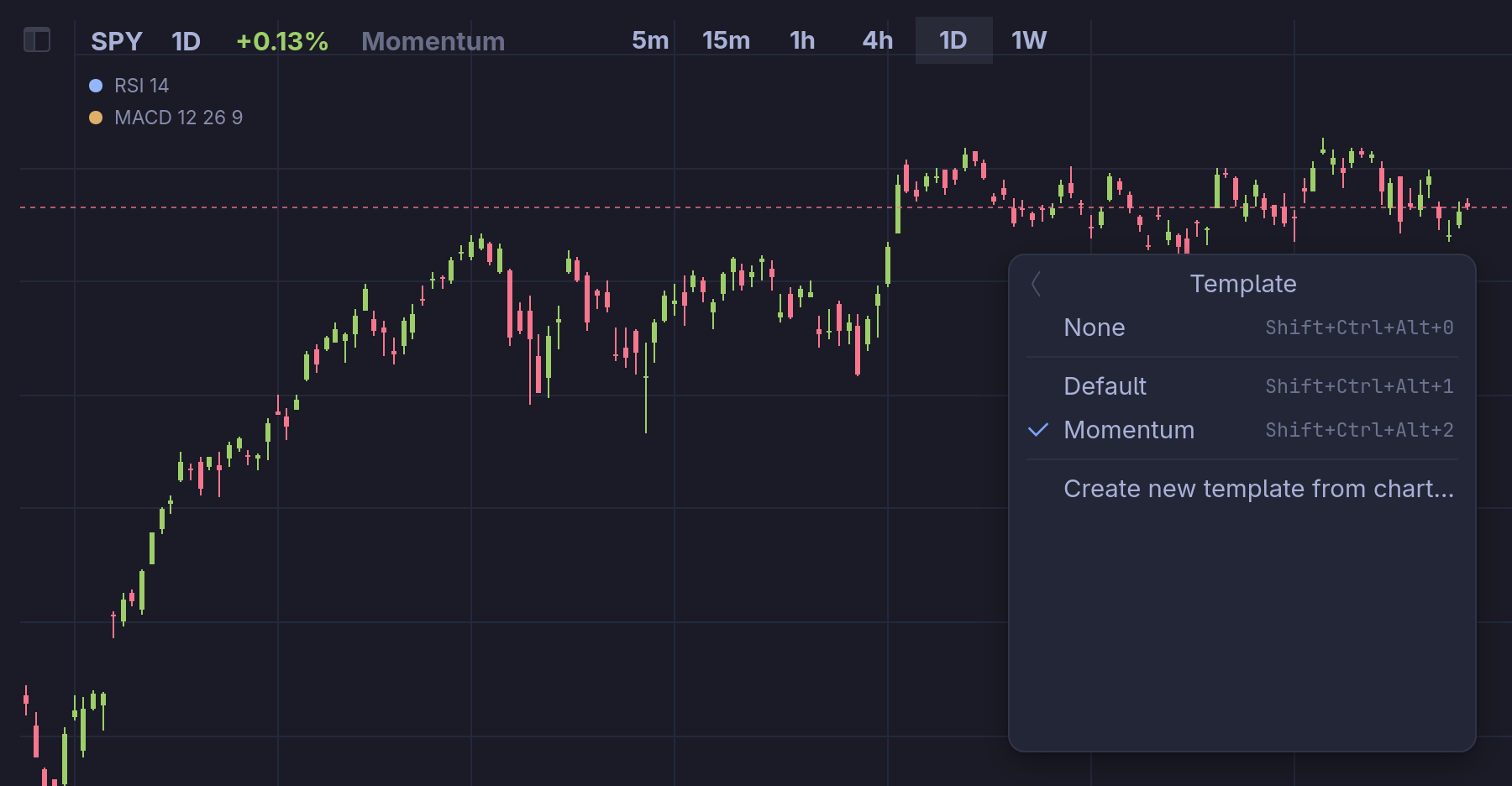
- Put a chart on it from the chart menu › Template (Choosing a chart’s template).
To make a template from what a chart already shows, right-click the chart › Template › Create new template from chart…, type a name and click Create. The new template holds the chart’s indicators, and the chart is put on it. The item is greyed out on a chart with no indicators.
How a chart on a template behaves
| Change | What happens |
|---|---|
| The template’s indicators change | Every chart on it, in every chartbook, changes at once |
You change an indicator from the chart: its Indicators page or settings, the legend’s eye or bin, a strip’s corner, or omacharts chart indicator |
The template changes, and so does every chart on it |
| You drag a strip’s edge on the chart | The template takes the new height, and so does every chart on it |
| You put the chart on another template | It shows that template’s indicators in place of its own |
| You put the chart on None | It shows no indicators |
| The template is renamed | The chart stays on it |
| The template is deleted | The chart keeps the template’s indicators as its own and stops following it |
| You split the chart | The new chart is on the same template (Splitting and arranging charts) |
If a chart has indicators of its own, choosing a template asks before replacing them, and choosing None asks before removing them.
With the Chart template part of the header on, the header names the template the chart is on (The header).
Choosing a chart’s template
| Where | How |
|---|---|
| The chart menu › Template | None, then every template in the order they were made. The one the chart is on is marked. Create new template from chart… comes last, below a line |
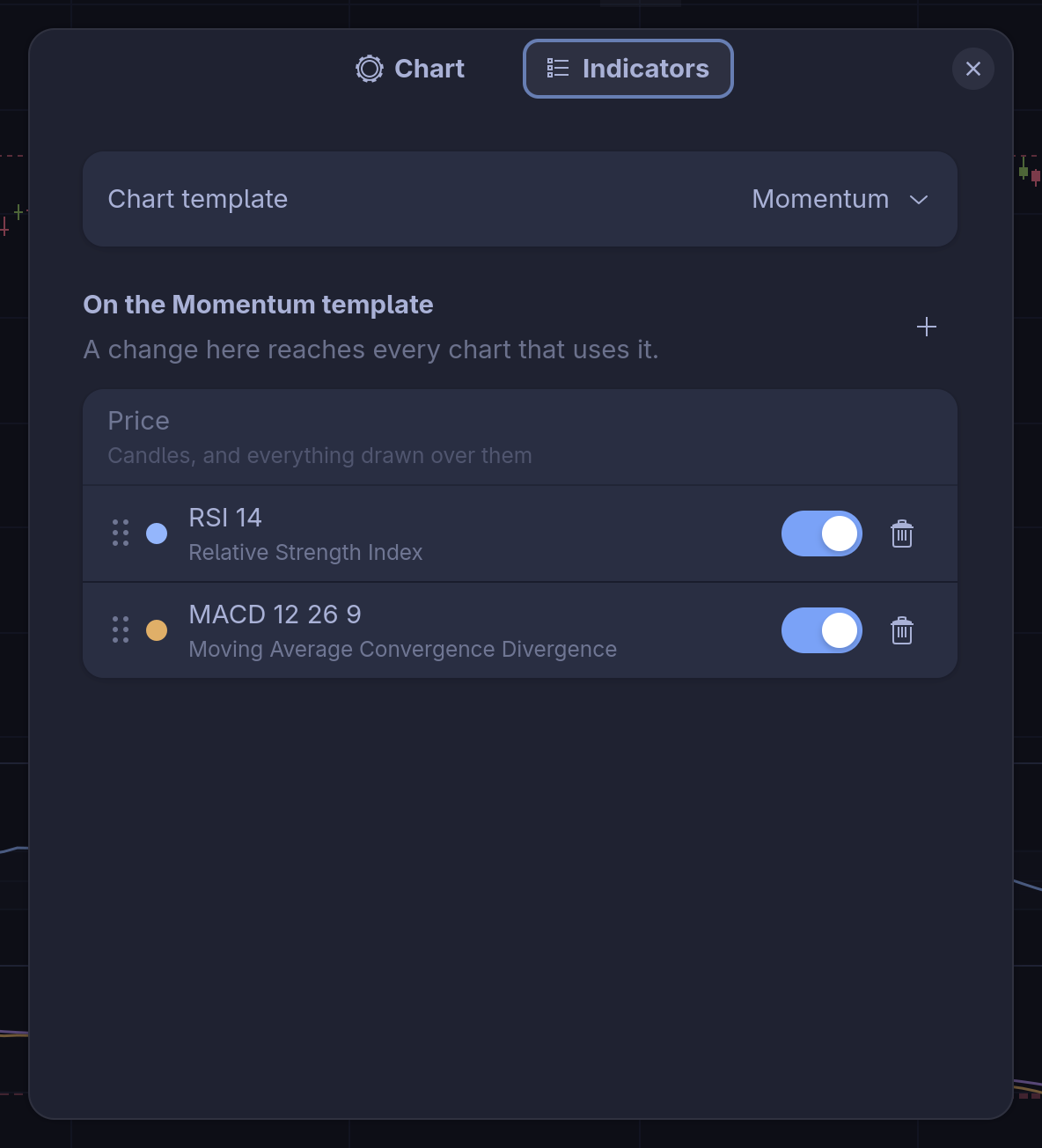
| Chart settings › Indicators › Chart template | The same choice, above the list of what the chart shows |
| Ctrl + Alt + Shift + 1 … 9 | The first to the ninth template, in that order, on the number row, whatever your layout puts on those keys with Shift. A number with no template does nothing |
| Ctrl + Alt + Shift + 0 | None. On a chart with indicators of its own, it removes them, asking first |
| Ctrl + Alt + Shift + PgUp / PgDn | The previous or next of None and the templates, wrapping round |
Editing a template
Preferences › Charts › Templates lists every template with its name, what it holds and how many charts use it. A template can also be edited from any chart on it, on the chart’s Indicators page, which lists the template’s indicators under On the Momentum template and changes them there.
| Control | Does |
|---|---|
| + (New chart template) | Asks for a name (New Chart Template, Create) and opens the new, empty template’s editor |
| Click a row, or its chevron | Opens the template’s editor |
| Pencil (Rename) | Asks for a new name. Charts on it stay on it |
| Bin (Delete) | Asks first (Delete Chart Template?), saying how many charts use it. They keep its indicators as their own |
The editor is the Indicators page of the template, headed Indicators in the template, with the same list, + and settings. Every chart on the template changes as you edit.
The template new charts open with
Preferences › Charts › Defaults › Indicators › Template is the template a new chart opens on, or None, which it is until you choose one. A new chartbook’s first chart opens on it. A chart made by splitting copies the chart it came from instead.
Reset to defaults in a chart’s settings puts the chart on this template the way choosing it does, asking first when it would lose its own indicators (Chart settings). Apply to all charts now under the defaults leaves every chart’s template and indicators as they are. If this template is deleted, new charts open on None. Default can be deleted like any other template, and is not recreated.