Watchlists
In this chapter
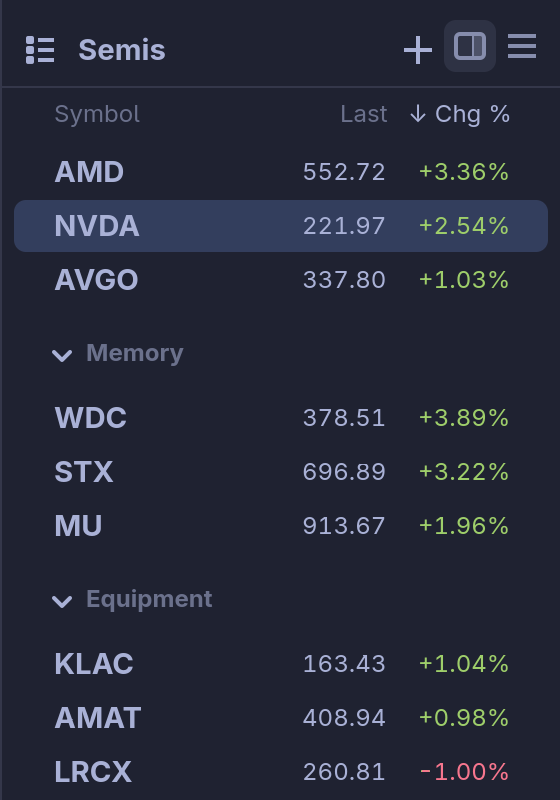
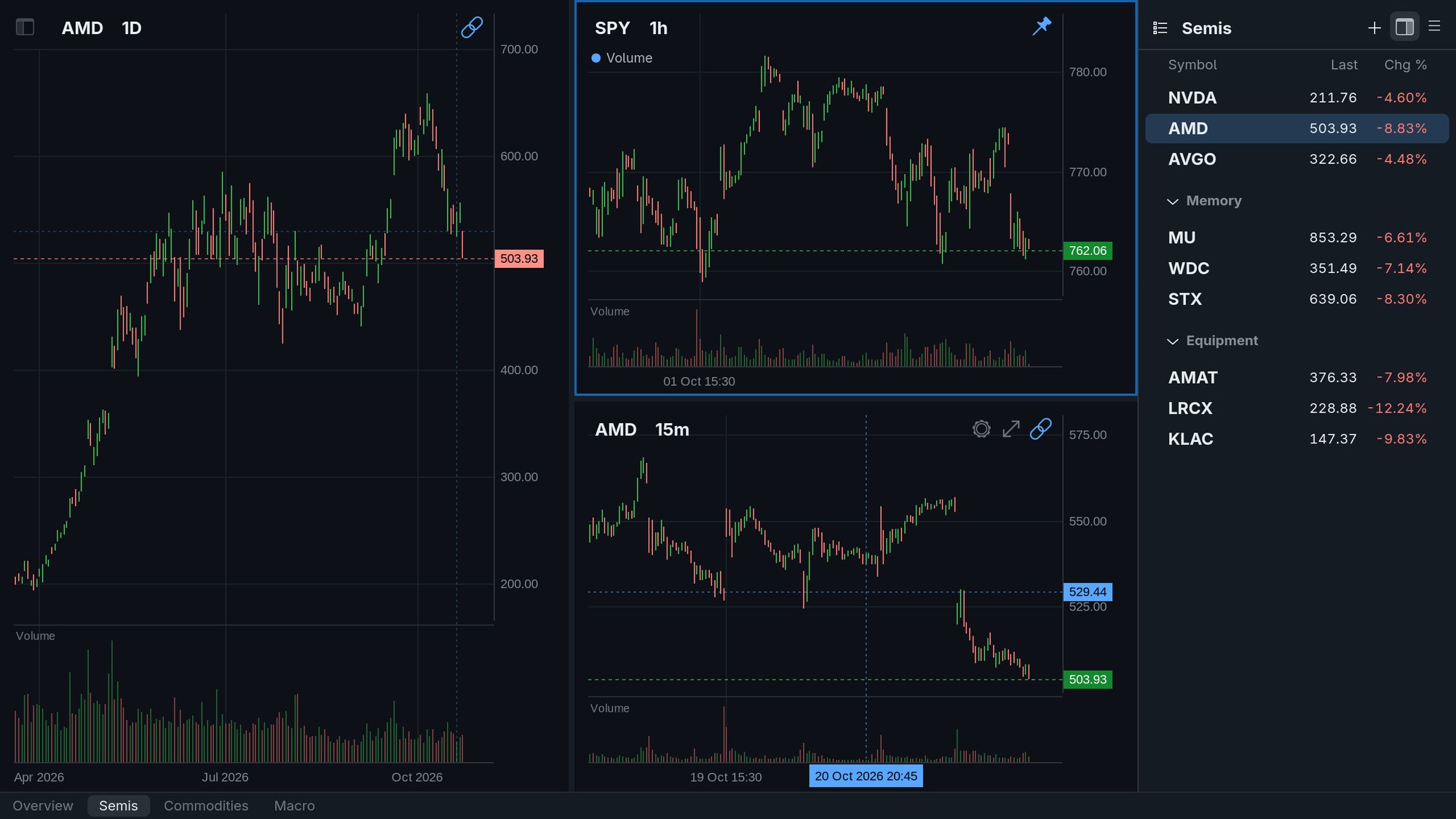
A watchlist is a list of symbols in the sidebar, on the right of the window. Click a symbol, or step to it with an arrow key, and the charts linked to the list show it. Each chartbook shows one watchlist. Which charts a click moves depends on each chart’s link mode.
The sidebar
Ctrl + Shift + B shows or hides the sidebar and puts the
keyboard in it (The window), as does Sidebars › Watchlist in the
chart menu. Drag its edge to make it
wider or narrower. Whether it is open, and how wide, is saved with each
chartbook. From a terminal, omacharts chartbook sidebar on or off (Command line).
Across its top are the button for the page of watchlists, the list’s name, and +, with Add a symbol and Add a section. An empty list offers the same two, with their keys.
A row shows a dash until it has a price. When no price can be shown (the feed refused, or there is no connection), a line above the first dash says why.
Columns
| Column | Shows |
|---|---|
| Symbol | The ticker, always first. Hover a row for the instrument’s full name. |
| Last | The last price. |
| Chg | The move since the previous close, in price. |
| Chg % | The move since the previous close, as a percentage. |
Out of the box the sidebar shows Symbol, Last and Chg %. Drag a column’s title along the row to move it. Symbol doesn’t move.
To add or remove columns, right-click the column titles and choose Edit columns…. In Watchlist Columns, + adds a column not yet shown, a column’s bin removes it, and dragging a column by its handle reorders it. Symbol is always shown. The sidebar changes as you edit.
Sorting
Click a column’s title to sort by it, low to high. Click again for high to low, and a third time for the order the list was written in. An arrow beside the title shows which, and its tooltip says what the next click does.
Sorting is within each section. The list re-sorts as prices move. A symbol with no price yet sorts last either way. The sort is saved with the watchlist. While a list is sorted, dragging a symbol within its section does nothing; dragging it into another section still moves it.
Symbols
| To | Do |
|---|---|
| Add one | Ctrl + N in the sidebar, or + › Add a symbol. The symbol search opens, and the pick lands at the end of the highlighted row’s section. |
| Remove one | Delete on the highlighted row, or right-click it › Remove. The highlight stays where it was. |
| Move one | Drag it to another place in its section, or into another section. Dropped on a section’s name, it joins the end of that section. That is the way into a folded or empty one. |
A list may hold the same symbol in two sections. Adding a symbol a section already has changes nothing.
Sections
A section is a named group inside a list. Symbols in no section have no header and sit at the top.
| To | Do |
|---|---|
| Add a section | Ctrl + Shift + N in the sidebar, or + › Add a section. Type the name, Enter. |
| Fold or unfold it | Click the arrow before its name, or Enter / Space with the keyboard on its name. The arrow keys skip a folded section’s symbols. |
| Rename it | Double-click its name, type, Enter. Leaving the box without Enter keeps the old name. |
| Move it | Drag its name above or below another section. |
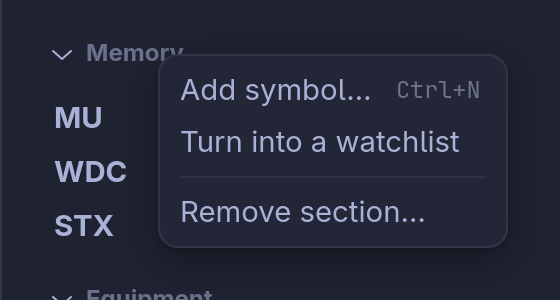
| Its menu | Right-click its name. |
| Menu item | Does |
|---|---|
| Add symbol… | Opens the symbol search, its search row naming the list and the section, such as → Semis · Memory. The symbol lands at the end of the section, which unfolds if it was folded. |
| Turn into a watchlist | Makes a watchlist named after the section, moves its symbols into it, removes the section and shows the new list. It doesn’t ask. |
| Remove section… | Removes the section and the symbols in it, after asking. |
The page of watchlists
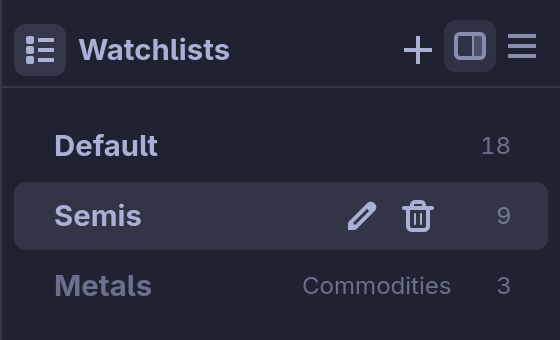
The button at the top-left of the sidebar opens the page of every watchlist in place of the symbols. The same button, or Esc, goes back.
| To | Do |
|---|---|
| Open a list | Click it, or Enter on it. The sidebar shows its symbols and the open chartbook takes it. No chart moves until you pick a symbol. |
| Make a list | + on this page. Type the name in the row that appears, Enter, and the new list opens. Esc or clicking away makes nothing. |
| Rename a list | The pencil that shows while the pointer is on the row, or right-click › Rename. Type, Enter. |
| Delete a list | The bin, or right-click › Delete…. It asks first, Delete “Semis” and the 9 symbols in it?, with Cancel the default. |
Each row counts the list’s symbols. A list another chartbook is using is dimmed, names that chartbook, and can’t be opened here (Chartbooks).
The default watchlist is the one a fresh install calls Default. It can be renamed and emptied but not deleted, and has no bin. Any number of chartbooks may show it. A chartbook whose list is deleted falls back to it. The Omarchy plugin shows it.
Keys
In the sidebar:
| Key | Does |
|---|---|
| ↑ ↓ | The previous or next symbol, as a click would pick it, stepping over the names of open sections. At either end it stays put. |
| Ctrl + ↑ ↓ | The first symbol of the previous or next section. |
| Enter / Space | On a section’s name, folds or unfolds it. |
| Ctrl + N | Adds a symbol to the highlighted row’s section. |
| Ctrl + Shift + N | Adds a section. |
| Delete | Removes the highlighted symbol from the list. |
| Ctrl + Alt + Shift + ↑ ↓ | The previous or next watchlist, round the ends. Only in the sidebar; over a chart the same keys resize it. |
| Esc | Back to the chart. On the page of watchlists, back to the list’s symbols. |
From anywhere:
| Key | Does |
|---|---|
| ↑ ↓ / Ctrl + Alt + ↑ ↓ | Over a chart, the previous or next symbol in the list, without going to the sidebar. It puts the symbol on the focused chart, as typing it would (Link modes). On a pinned chart it steps the sidebar instead, as a click there would. A selected drawing takes ↑ ↓ first, to nudge it. |
| Ctrl + Alt + 1 … 9 | Shows watchlist N, counting down the page of watchlists, on the number row whatever your layout prints there. |
Linking charts to the watchlist
A link mode is a chart’s setting for what a click in the watchlist does to it. Each chart has its own. Every chart starts as Focus.
Link modes
| Mode | A click in the watchlist | A symbol typed on the chart |
|---|---|---|
| Focus | Moves it while it is the focused chart. | Moves it alone. |
| Follow | Always moves it. The Follow charts all show one symbol. | Moves it and every other Follow chart. |
| Pinned | Never moves it, focused or not. | Moves it alone. |
Follow from the chain or the chart menu puts this chart’s symbol on every other Follow chart and highlights it in the watchlist. Switching to Follow with Ctrl + L works the other way round. The chart takes the symbol the other Follow charts show. Nothing moves when:
- Leaving Follow. The charts still following keep what they had.
- Setting the mode a chart is already in.
- Following from a chart with no symbol. The Follow charts keep what they were showing.
When the focused chart is pinned and no chart follows, a click in the sidebar, or an arrow key over the chart, moves nothing. The pin on that chart lights for a moment and the sidebar’s highlight goes back to the symbol the chart shows.
A click in a watchlist moves charts in its own chartbook only.
Choosing a link mode
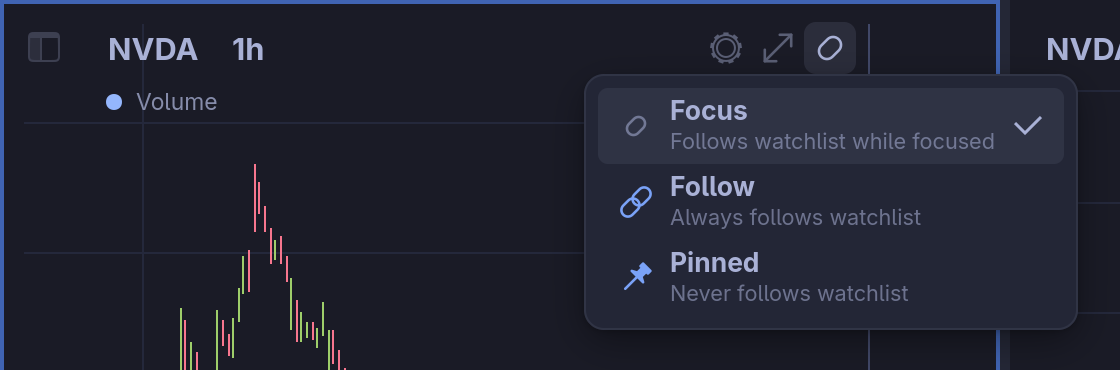
The chain in a chart’s top-right corner shows the mode. One link is Focus, two links are Follow and a pin is Pinned. Focus is drawn dim, Follow and Pinned in the theme’s accent colour.
| Where | How |
|---|---|
| The chain | Click it for Focus, Follow and Pinned, the current one ticked. Clicking another chart’s chain focuses that chart first. |
| The chart menu | Right-click the chart › Watchlist › Focus, Follow, Pinned (Charts). |
| Ctrl + L | Moves the focused chart to its next mode: Focus, Follow, Pinned and round to Focus. |
| Ctrl + Shift + L | The same, the other way round. |
The chain appears once there is a second chart. With one chart, Focus and Follow do the same thing. A lone chart shows the chain only while it is pinned.
See also
- Managing watchlists with the CLI, including export and import
- Linking charts from the CLI