Rectangle
In this chapter
A box between two corners.
| Key | Placing it | CLI |
|---|---|---|
| Alt + R | Press at one corner, release at the other | rect |
Properties
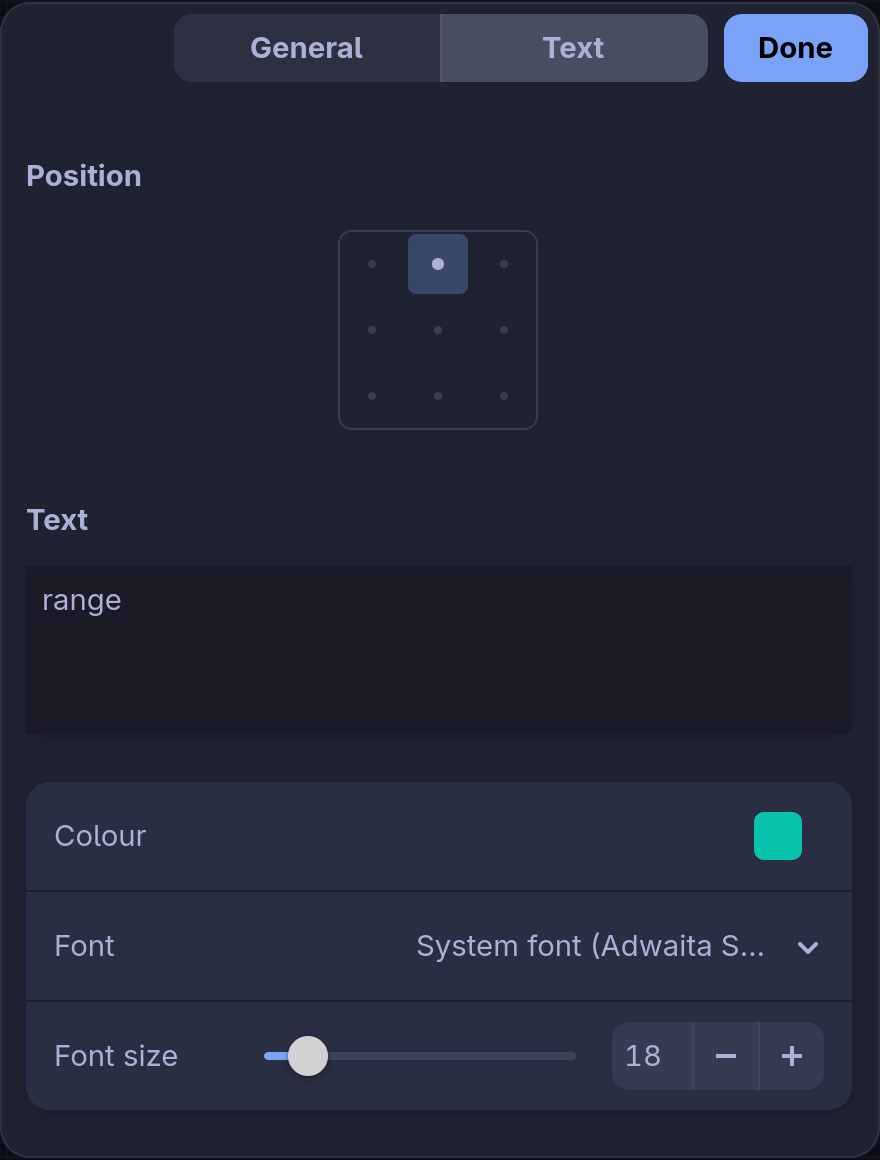
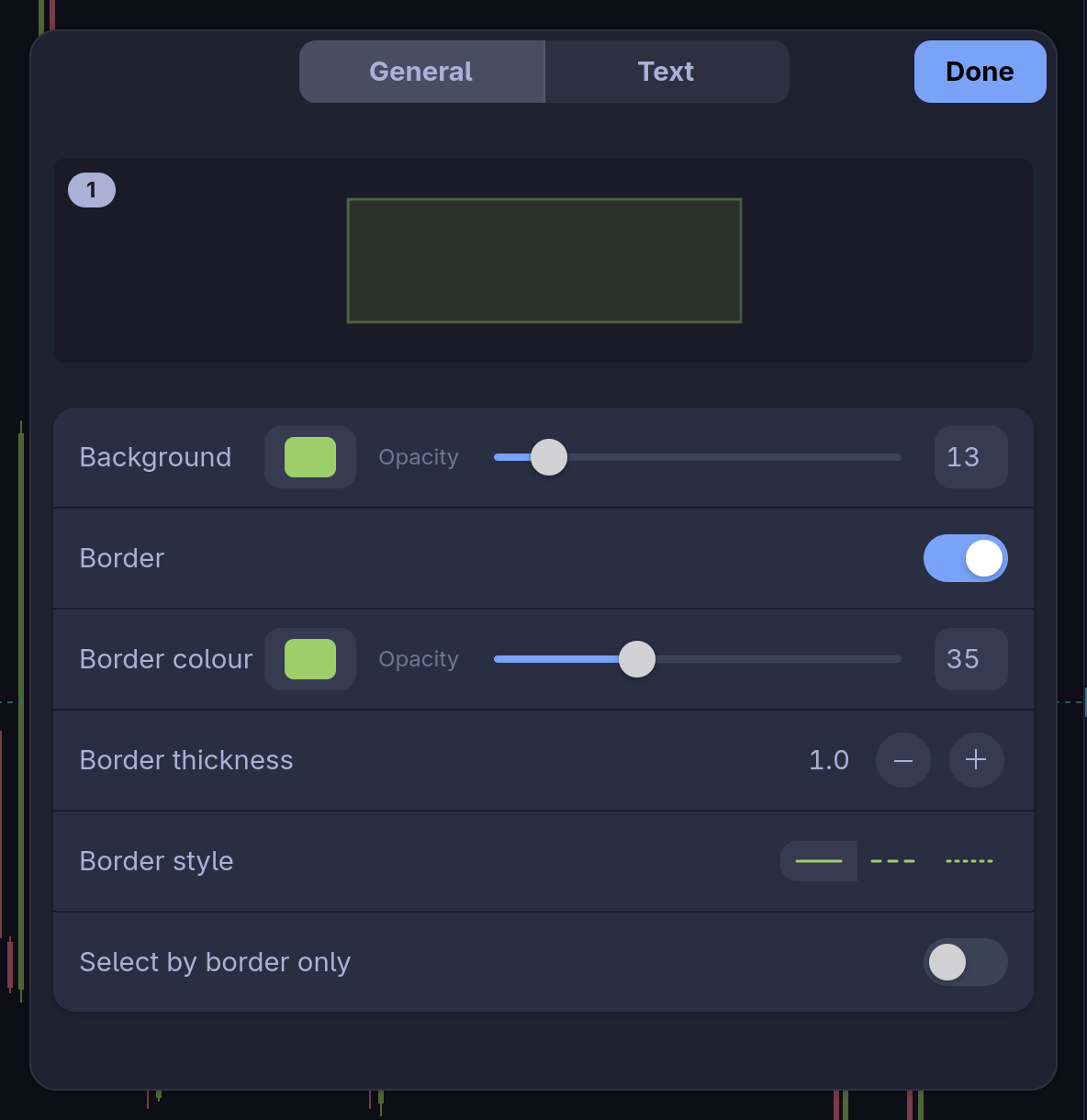
Two tabs: General for the rectangle itself and Text for a label in it. Alt + Enter or a double-click on the rectangle opens them, and Alt + ← / → moves between the tabs. Defaults are those of a configuration as shipped.
General
| Property | What it does | Default |
|---|---|---|
| Background | The fill’s colour: one of the nine presets, which change with the theme, or Custom… for a hex colour that stays the same in every theme. Its Opacity is how solid the fill is, 0 to 100%: at 100% it hides the candles under it; at 0% there is no fill, only the border | The configuration’s, at 13% |
| Border | Draws an edge round the rectangle. Off leaves the fill on its own. The three border rows below show only while it is on | On |
| Border colour | The edge’s colour. Its Opacity is how solid the edge is drawn; at about a third, as shipped, it reads as the rim of the fill rather than a separate line | The configuration’s, at 35% |
| Border thickness | How thick the edge is, 0.5 to 12 px in halves, drawn just inside the box so the box keeps its size | 1 px |
| Border style | Solid, Dashed or Dotted | Solid |
| Select by border only | Makes only the edge pick the rectangle up, whether or not a border is drawn. A click or a Shift + drag inside it then goes to the chart and the drawings under it. Turn it on for a large rectangle over bars you still want to click and draw on | Off |
Text
| Property | What it does | Default |
|---|---|---|
| Position | Where the label sits inside the rectangle, picked on a grid of nine: a corner, the middle of an edge, or the centre. It keeps a small margin from the edge | Centre |
| Text | The label’s words. Empty means no label. Typing here drops any bold or italic; to set those, type on the chart instead (Text and labels) | Empty |
| Colour | The label’s colour, and its Opacity. It is lightened or darkened where it would not read against the fill | The configuration’s, at 100% |
| Font | System font, the desktop’s own, named with its family, or any font installed on this computer | System font |
| Font size | The label’s size, 6 to 96 px. Ctrl + + / − on the chart changes it a pixel at a time | 18 px |
Position and Text belong to this rectangle alone. Every other property is part of its configuration, so changing one gives the rectangle a Custom look (Configurations).