
Preferences
In this chapter
Preferences holds the settings that apply to the whole app. Open it with Ctrl + , or from the main menu (The window). Every row is saved as it changes, with no Apply or Cancel. A chart’s own settings, and the defaults new charts open with, are in Chart settings.
The dialog
In a narrow window the list of sections becomes a page of its own and a section opens over it.
Reopened while the app is running, the dialog comes back on the section and tab you left it on. Opening it from a chart’s header still goes to Charts › Header.
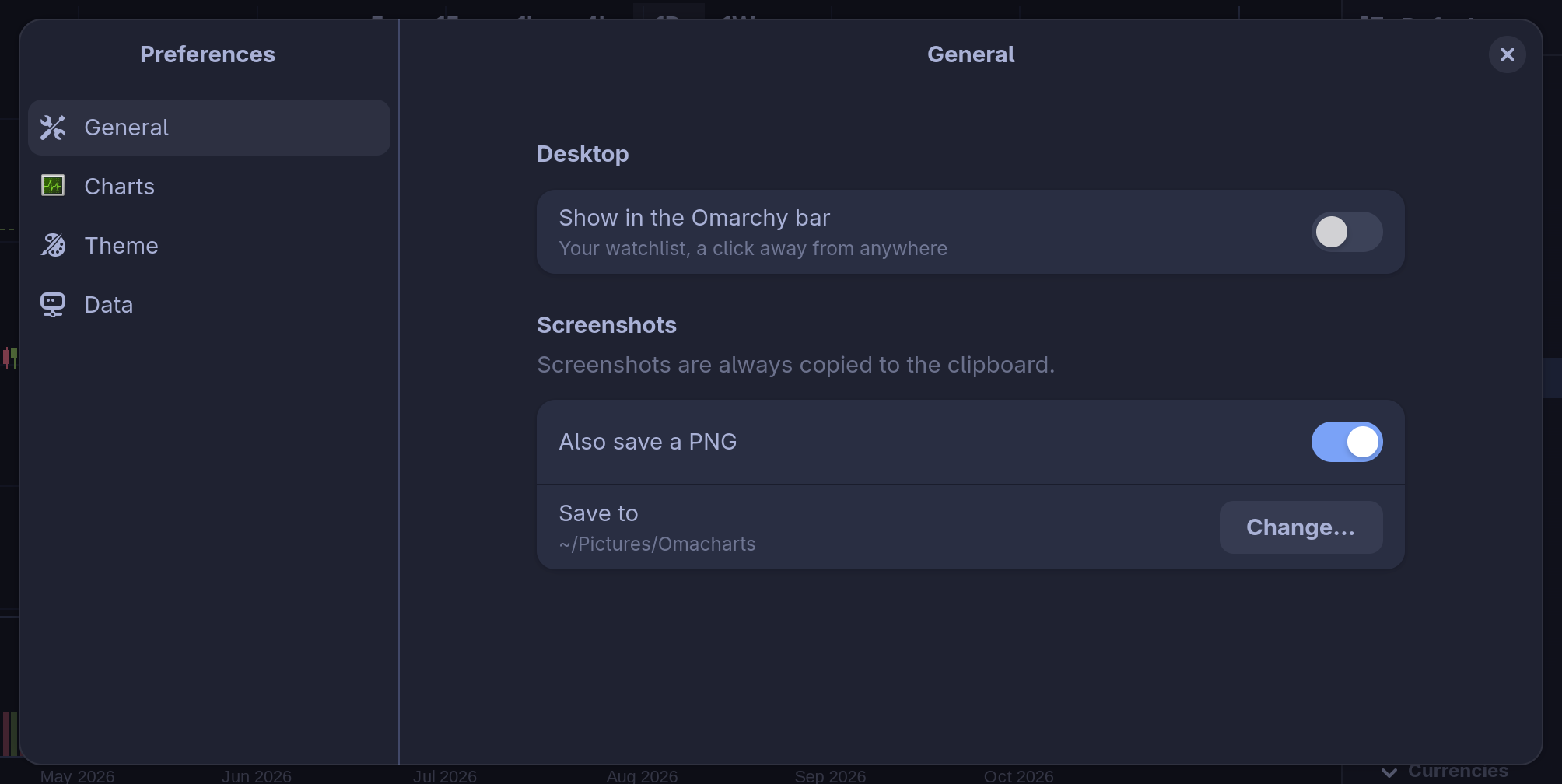
General
| Group › row | Does | Chapter |
|---|---|---|
| Desktop › Show in the Omarchy bar | Puts the Omarchy plugin in the bar, or takes it out. The group appears only on an Omarchy desktop. | Omarchy plugin |
| Screenshots › Also save a PNG | Keeps a file as well as copying to the clipboard, which always happens. | Screenshots |
| Screenshots › Save to, Change… | The folder the PNG goes to. Greyed out while the switch above is off. | Screenshots |
| Updates › Update automatically | Downloads new releases in the background, to start at the next launch. On by default. | Installation |
Charts
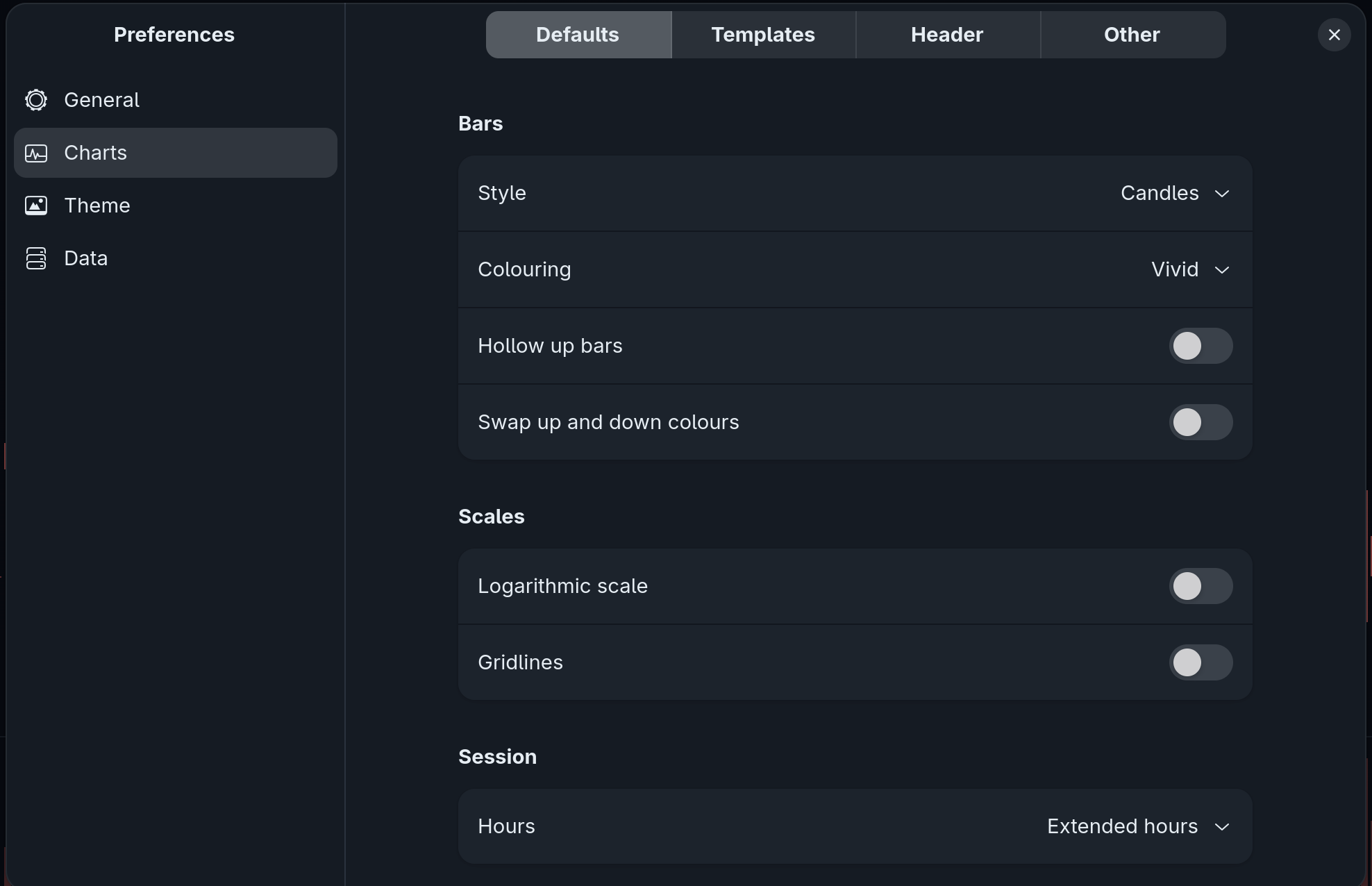
Defaults is what a new chart opens with. Its rows, and Apply to all charts now, are in Chart settings.
| Tab › group › row | Does | Chapter |
|---|---|---|
| Templates › Chart templates | The list. + makes one, a row opens its editor, the pencil renames, the bin deletes. | Chart templates |
| Header › Left, Center | The parts every chart’s header shows in each section, in order. | The header |
| Other › Chart › Preset resolutions, Edit… | Opens the Resolutions dialog. | The preset resolutions |
| Other › Chart › Sync crosshair across charts | The pointer on one chart draws the same moment on every other chart of the same symbol. On by default. | Sharing the crosshair |
| Other › Chart › Zoom sensitivity | How far the wheel and a two-finger swipe zoom every chart, from 10% to 200%. 100% by default, where a wheel notch zooms as it always has. | Moving around |
| Other › Time › Time zone, Time format | How every chart tells the time. | Time |
Time
The Time group on the Other tab sets the clock every chart reads. A change applies at once to every chart on screen. It governs the time axis, the crosshair, every time typed into an indicator’s settings, and the times omacharts chart drawing reads and prints.
| Row | Choices | Default |
|---|---|---|
| Time zone | Each chart’s exchange, or a city, each listed with its offset from UTC today, such as London (UTC+1) | New York |
| Time format | 24-hour (15:30), 12-hour (3:30 PM) | The desktop’s clock format |
Each chart’s exchange puts each chart in its own exchange’s clock: ES in Chicago time, a Madrid listing in Madrid time, crypto in UTC. The crosshair’s time then ends with the zone, such as 21 Oct 2026 07:30 CT, so two linked charts that disagree about the time say why. Any other time zone, by its IANA name such as Asia/Kolkata, can be set from the CLI (Settings); the row then lists it too.
Daily and longer bars are dates and read the same in every time zone.
Theme
Theme chooses the theme and Customize makes one of your own (Themes and colours).
Data
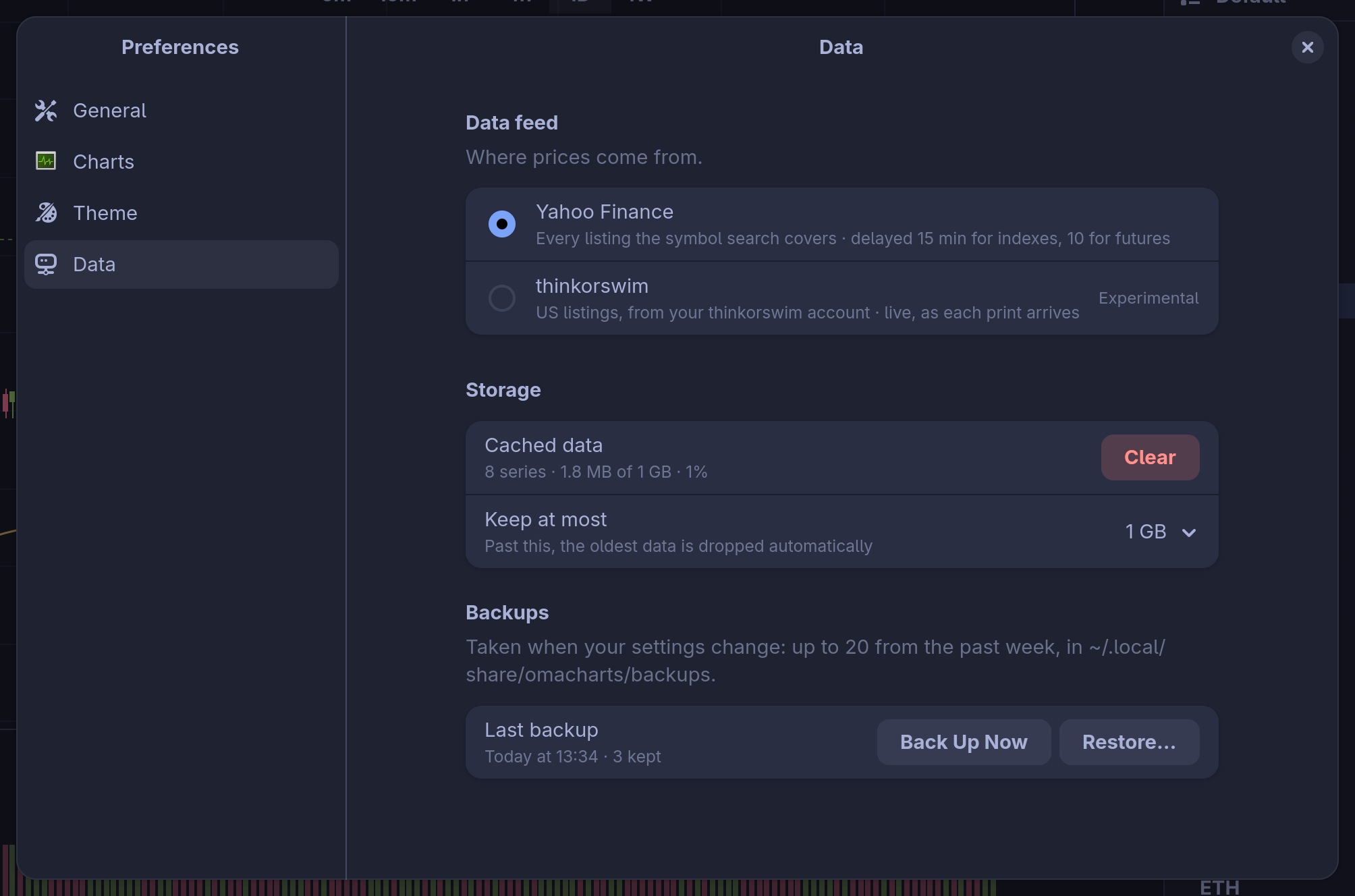
| Group › row | Does | Chapter |
|---|---|---|
| Data feed › Yahoo Finance, thinkorswim | The feed every chart gets its prices from. Open charts switch at once. | Market data feeds |
| thinkorswim › Sign in… / Sign out | Shown only while thinkorswim is chosen. | Market data feeds |
| Storage › Cached data, Clear | How much downloaded price data is kept, and a button to delete it all. | Where your data lives |
| Storage › Keep at most | 256 MB, 512 MB, 1 GB, 2 GB, 5 GB. | Where your data lives |
| Backups › Last backup, Back Up Now, Restore… | When settings were last backed up, and restoring one. | Where your data lives |
Agent
What dictation goes with (Dictation).
| Group › row | Does | Chapter |
|---|---|---|
| Dictation › Agent | Names Omarchy’s default agent, which dictation goes to, or says how to set one. | Agents |
| Dictation › Model | The model dictation asks the agent for, kept for each agent. Agent’s default leaves it to the agent. Not shown for an agent that opens in a terminal. | Preferences |
| Context | Text sent to the agent after Omacharts’ own line, at the start of each conversation. Empty by default, and saved as you type. | What the agent is sent |
Trading
Trading has a Beta tag in the list of sections: it is experimental. The page holds the logins and their accounts, Edit quantities…, Order labels and how charts show P&L, all in Trading services.
Settings that stay with this machine
The screenshot folder, the Keep at most limit, Update automatically and the sidebar width stay with this machine. Restoring another machine’s backup leaves them as they were (Restoring).