Hotkeys
In this chapter
A key goes to whatever has the keyboard when you press it, whether the chart, the sidebar, a dialog or a drawing you are typing in.
The Keyboard shortcuts sheet
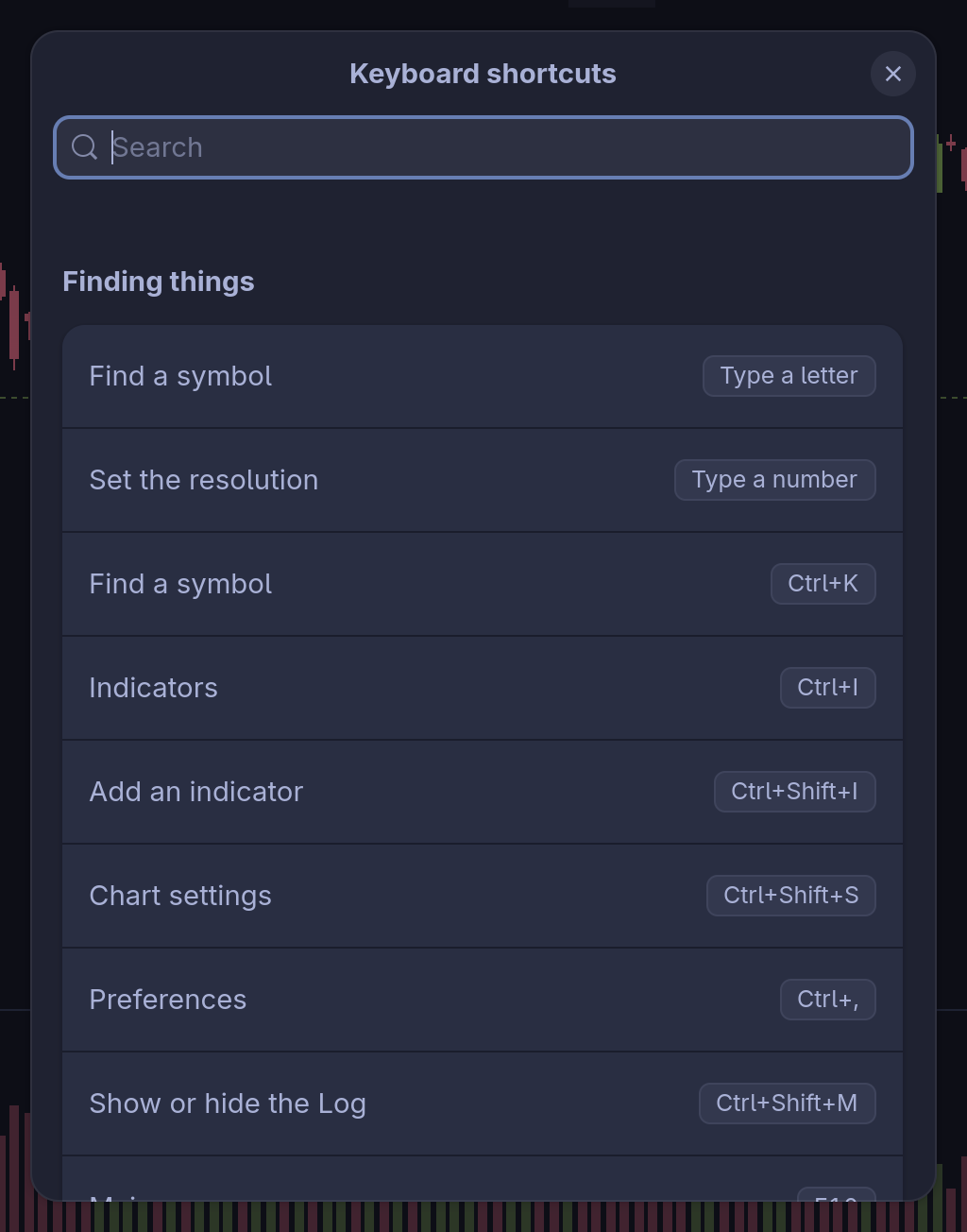
The Keyboard shortcuts sheet (?) lists the keys inside the window, with a search box (The window).
Some menus and tooltips write the modifiers in another order (Shift+Ctrl+N rather than Ctrl+Shift+N).
The sheet leaves out /, the keys inside dialogs and while typing on the chart, and the mouse. The Omarchy plugin’s panel has keys of its own, in Omarchy plugin.
Finding things
| Key | Does | See |
|---|---|---|
| Type a letter | Opens the symbol search with that letter in it | Symbols |
| Ctrl + K / / | Opens the symbol search empty | Symbols |
| Type a number | Opens Change resolution with that digit in it. A bare number is minutes | Charts |
| Ctrl + I | The focused chart’s indicators | Indicators |
| Ctrl + Shift + I | The list of indicators to add | Indicators |
| Ctrl + Shift + S | The focused chart’s settings | Chart settings |
| Ctrl + , | Preferences | Preferences |
| Ctrl + Shift + M | The Log | The window |
| F10 | The main menu | The window |
| ? / Ctrl + ? | The Keyboard shortcuts sheet | The window |
Chartbooks
| Key | Does | See |
|---|---|---|
| Ctrl + N | New chartbook, while the keyboard is not in the sidebar | Chartbooks |
| Ctrl + Shift + R | Renames the open chartbook, in its tab | Chartbooks |
| Ctrl + Shift + Alt + X | Removes the open chartbook, after asking. The last one cannot be removed | Chartbooks |
| Ctrl + Alt + ← → | The previous or next chartbook | Chartbooks |
| Ctrl + Alt + O | A screenshot of the open chartbook, to the clipboard | Screenshots |
Watchlist
With the keyboard in the sidebar:
| Key | Does | See |
|---|---|---|
| ↑ ↓ | The previous or next symbol, stepping over the names of open sections | Watchlists |
| Ctrl + ↑ ↓ | The previous or next section | Watchlists |
| Enter / Space | On a section’s name, folds or unfolds it | Watchlists |
| Ctrl + N | Adds a symbol to the section of the highlighted row | Watchlists |
| Ctrl + Shift + N | Adds a section | Watchlists |
| Delete | Removes the highlighted symbol from the list | Watchlists |
| Ctrl + Alt + Shift + ↑ ↓ | The previous or next watchlist. Over a chart the same keys resize it | Watchlists |
| Esc | Back to the chart. On the page of watchlists, back to the list’s symbols | Watchlists |
From anywhere:
| Key | Does | See |
|---|---|---|
| Ctrl + Shift + B | Shows the sidebar with the keyboard in it, or hides it and gives the keyboard back to the chart | The window |
| ↑ ↓ / Ctrl + Alt + ↑ ↓ | Over a chart, the previous or next symbol in the watchlist, without going to it | Watchlists |
| Ctrl + Alt + 1 … 9 | Shows watchlist N, counting down the page of watchlists, on the number row whatever your layout prints there | Watchlists |
Arranging charts
| Key | Does | See |
|---|---|---|
| Ctrl + Alt + H | Splits the focused chart horizontally. The new chart is a copy | Layouts |
| Ctrl + Alt + V | Splits it vertically | Layouts |
| Ctrl + Alt + X | Closes the focused chart | Layouts |
| Ctrl + M | Gives the focused chart the whole window, or puts it back | Layouts |
| Alt + ← → | Focuses the previous or next chart, row by row, wrapping at either end | Layouts |
| Alt + ↑ ↓ | Focuses the chart above or below | Layouts |
| Ctrl + Alt + Shift + ← → ↑ ↓ | Grows the focused chart in that direction, by moving the divider it sits against | Layouts |
| Ctrl + L / Ctrl + Shift + L | The focused chart’s next or previous link mode: Focus, Follow, Pinned | Watchlists |
| Ctrl + O | A screenshot of the focused chart, to the clipboard | Screenshots |
The focused chart
| Key | Does | See |
|---|---|---|
| Ctrl + Shift + ← → | The previous or next resolution on the strip | Charts |
| ← → | Pans five bars. With a drawing selected, nudges it instead | Charts |
| + − | Zooms in or out | Charts |
| End | Jumps to the latest bar | Charts |
| Ctrl + Esc | Resets zoom, pan and price scale to how the chart opens | Charts |
| Ctrl + G | Opens Go to, which jumps to a date or sets the window to a span or a custom range | Charts |
| Ctrl + Shift + G | Shows or hides the gridlines | Charts |
| Ctrl + H | Hides every drawing, or shows them again | Hiding the drawings |
| Ctrl + Shift + H | Hides every indicator, or shows them again | Hiding every indicator |
| Ctrl + Alt + Shift + H | Hides the bars, or shows them again in the style they had | Hiding the bars |
| F2 | With no drawing selected, edits the chart title: in the header when it shows the chart title, otherwise in the Chart title dialog. With a drawing selected, F2 is the drawing’s (below) | Chart titles |
| Ctrl + Alt + Shift + 1 … 9 | Chart template N, in the order they are listed | Chart templates |
| Ctrl + Alt + Shift + 0 | No chart template | Chart templates |
| Ctrl + Alt + Shift + PgUp PgDn | The previous or next chart template | Chart templates |
| Esc | Back to the chart from wherever the keyboard is. On the chart, deselects the tool and clears the selection | The window |
The template keys are the number row, whatever your layout prints on it with Shift held.
Drawing
Tools and configurations:
| Key | Does | See |
|---|---|---|
| Ctrl + Shift + D | Shows or hides the drawing tools | Drawings |
| Alt + L | A line: click where it starts, then where it ends | Line |
| Alt + H | A horizontal line | Horizontal line |
| Alt + A | An arrow | Arrow |
| Alt + G | A zig-zag: click each corner, then click the last one again, double-click or press Enter to end it | Zig-zag |
| Alt + R | A rectangle | Rectangle |
| Alt + C | A circle, dragged to any shape | Circle |
| Alt + T | Text: click, then type | Text |
| Alt + V | A volume profile of the span dragged across | Volume profile |
| Alt + W | An anchored VWAP from the bar clicked | Anchored VWAP |
| Alt + F | A Fib retracement of the swing dragged across | Fib retracement |
| Alt + M | Measure: click the start, then the end | Measure |
| Alt + Z | Zoom: drag a box, or click its two corners, and the chart shows just that | Zoom |
| Alt + Shift + Z | Back to the view before the last zoom | Zoom |
| Alt + 1 … 9 | Configuration N, for the selected drawing or the one about to be drawn | Drawings |
| Ctrl, held | A point being placed or dragged snaps to the open, high, low or close of the candle under it | Drawings |
With drawings selected:
| Key | Does | See |
|---|---|---|
| Enter / F2 | Puts the caret in the selected drawing’s text. With no drawing selected, F2 edits the chart title instead | Drawings |
| Alt + Enter | The drawing’s properties | Drawings |
| ← → ↑ ↓ | Nudges it a pixel. Ten with Shift | Drawings |
| Ctrl + Shift + ↑ ↓ | Brings it to the front, or sends it to the back | Drawings |
| Ctrl + + / Ctrl + − | Grows or shrinks its text. On a figure, its label | Drawings |
| Alt + Shift + + / Alt + Shift + − | Thickens or thins its line or edge | Drawings |
| Alt + Shift + ← → ↑ ↓ | Puts its label against that edge | Drawings |
| Alt + Shift + . | Puts its label back in the middle | Drawings |
| Alt + Shift + A | Steps its arrowhead: none, filled, open, barb | Drawings |
| Ctrl + X / Ctrl + C / Ctrl + V | Cuts or copies the selected drawings, or the selected indicator, and pastes them | Drawings |
| Delete / Backspace | Deletes them | Drawings |
| Esc | Clears the selection | Drawings |
With an indicator selected:
| Key | Does | See |
|---|---|---|
| Alt + Enter | Its settings | Indicators |
| Alt + Shift + + / Alt + Shift + − | Thickens or thins its line, or a volume profile’s outline | Indicators |
| Ctrl + X / Ctrl + C / Ctrl + V | Cuts or copies it, and pastes it on the focused chart | Indicators |
| Delete / Backspace | Removes it | Indicators |
| Esc | Clears the selection | Indicators |
On the chart, whatever is selected:
| Key | Does | See |
|---|---|---|
| Ctrl + A | Selects every drawing on the plot | Drawings |
| Ctrl + Z | Undoes the last change to this chart’s drawings | Drawings |
| Ctrl + Y / Ctrl + Shift + Z | Redoes it | Drawings |
| Enter | While a zig-zag is being drawn, ends it at the last corner | Zig-zag |
While a box you are typing in has the keyboard, Ctrl + C, Ctrl + V and the arrows belong to it.
Trading
Only once there is a trading login (Trading from a chart). The keys that trade act on the focused chart, and never while typing in a box. Nothing asks before an order is sent.
| Key | Does | See |
|---|---|---|
| Ctrl + B | Buy the chart’s quantity at the market | Placing orders |
| Ctrl + S | Sell the chart’s quantity at the market | Placing orders |
| Ctrl + F | Flatten the chart’s contract and cancel its working orders | Moving, cancelling and flattening |
| Ctrl + 1 … 9 | Pick the quantity, first to ninth | Quantities |
| Ctrl + Shift + A | Show or hide the accounts | The Trading panel |
| Ctrl + Shift + P | Show or hide the positions | The Trading panel |
| Ctrl + Shift + O | Show or hide the orders | The Trading panel |
| Ctrl + Shift + E | New order, with every choice in front of you (Beta) | The New order dialog |
| Ctrl + Shift + 1 … 9 | Pick the chart’s order template, first to ninth; with a working order picked out, give it that template (Beta) | Order templates |
| Ctrl + Shift + 0 | No order template (Beta) | Order templates |
Typing on the chart
While the caret is in a drawing:
| Key | Does | See |
|---|---|---|
| Enter | Keeps what you typed | Drawings |
| Shift + Enter | A new line | Drawings |
| Ctrl + B / Ctrl + I | Bold or italic, over the selection or the word the caret is in | Drawings |
| Esc | Leaves the text as it was | Drawings |
A click elsewhere keeps what was typed.
Dictation
| Key | Does | See |
|---|---|---|
| Right Alt, held | Omarchy’s dictation. Released with no text box focused, what you said goes to the default agent | Dictation |
Dialogs and boxes
| Key | Does | See |
|---|---|---|
| Ctrl + Enter | Finishes the dialog with the button in its corner: Create in New chartbook, Add for an indicator, Done in a drawing’s properties and in a tool’s configurations. In the symbol search and the list of indicators, takes the highlighted row. In Go to, goes to what you typed, from anywhere in the card | The window |
| Enter | In a search box, takes the highlighted row | The window |
| ↑ ↓ | In a search box, moves the highlight while the keyboard stays in the box | Symbols |
| Esc | Closes the dialog. In Preferences, goes back a page first | The window |
| Alt + ← → | Switches pages: Chart and Indicators in Chart settings, General and Text in a drawing’s properties | Chart settings, Drawings |
| Alt + 1 … 9 | In a drawing’s properties, applies configuration N | Drawings |
| Enter / Esc | In Change resolution, sets the resolution, or closes it | Charts |
| Enter / Esc | In Go to, goes to what you typed, or closes it | Charts |
| Space / ↓ | In Go to, drops the list under the box. Space only while the box is empty | Charts |
| Tab | In Go to, moves to the resolution, then to From and To | Charts |
| Enter / Esc | Renaming a tab or a section, keeps the name, or puts the old one back | Chartbooks, Watchlists |
A click outside the symbol search, Change resolution, Go to, the list of indicators or the Keyboard shortcuts sheet closes it. A form (New chartbook, a drawing’s properties) closes only on Esc or its own buttons.
Mouse
On a chart:
| Gesture | Does | See |
|---|---|---|
| Click | Focuses the chart | Layouts |
| Drag the plot | Pans | Charts |
| Wheel | Zooms time, about the pointer | Charts |
| Shift + wheel | Pans | Charts |
| Ctrl + wheel | Scales price | Charts |
| Trackpad, sideways | Pans, whatever is held | Charts |
| Wheel or drag over the price axis | Scales price, taking it off automatic | Charts |
| Drag the time axis | Scales time | Charts |
| Double-click the price axis | Puts the price scale back on automatic | Charts |
| Double-click the time axis | Resets the zoom, ending on the latest bar | Charts |
| Right-click the plot | The chart menu | Charts |
| Right-click the price axis | Auto scale price, Logarithmic scale, Reset chart | Charts |
| Click the symbol in the header | The symbol search | Symbols |
| Click the resolution in the header | The list of resolutions | Charts |
| Click the chart title in the header | Edits the chart title in place | Chart titles |
| Right-click the header | Edit header… | Charts |
| Right-click the resolution strip | Edit resolutions…, Edit header… | Charts |
| Double-click an indicator’s name in the legend | Its settings. The eye, gear and bin beside it hide it, open its settings, or remove it | Indicators |
| The gear, top-right | Chart settings | Chart settings |
| The corner arrows, top-right | Gives the chart the whole window, or puts it back | Layouts |
| The chain, top-right | The link mode: Focus, Follow, Pinned | Watchlists |
| An indicator strip’s ×, and its chevrons | Removes the strip, or moves it up or down the stack | Indicators |
| Drag the edge of an indicator strip | Makes it taller or shorter | Indicators |
| Drag the divider between two charts | Resizes them | Layouts |
Drawing with the mouse:
| Gesture | Does | See |
|---|---|---|
| Click a tool | Selects it for one drawing | Drawings |
| Ctrl + click a tool | Keeps the tool selected for the next drawings. Esc deselects it | Drawings |
| Right-click a tool | Its configurations | Drawings |
| Press, then press again, or press and drag | Places a drawing between two anchors | Drawings |
| Right-click while placing | Abandons the unfinished drawing and keeps the tool | Drawings |
| Click a drawing | Selects it. Drag an end, or the whole thing | Drawings |
| Shift + click / Ctrl + click a drawing | Adds it to the selection, or takes it out | Drawings |
| Shift + drag the empty chart | Selects every drawing the box touches | Drawings |
| Ctrl + drag a corner | Snaps it to the candle under it | Drawings |
| Double-click a drawing | Opens its properties. On a text drawing, puts the caret in it | Drawings |
| Click an indicator, or its name in the legend | Selects it | Indicators |
| Double-click an indicator | Opens its settings | Indicators |
| Right-click an indicator | Selects it and opens its menu: Cut, Copy, Paste, Remove, Properties… | Indicators |
| Right-click a drawing | Selects it and opens its menu: Edit text, Cut, Copy, Paste, Remove, Configuration, Thickness, Arrowhead, Bring to front, Send to back, Properties… | Drawings |
Around the window:
| Gesture | Does | See |
|---|---|---|
| Click a tab | Opens that chartbook | Chartbooks |
| Double-click a tab | Renames it | Chartbooks |
| Drag a tab | Moves it along the strip | Chartbooks |
| Right-click a tab | Rename, Duplicate, Remove, Take screenshot, Template | Chartbooks |
| Click a symbol in the sidebar | Shows it on the charts that take the watchlist | Watchlists |
| Drag a symbol or a section’s name | Moves it, within a section or into another | Watchlists |
| Click a column’s title | Sorts by it, low to high, then high to low, then the list’s own order | Watchlists |
| Drag a column’s title | Moves the column | Watchlists |
| Right-click the column titles | Edit columns… | Watchlists |
| Click the arrow before a section’s name | Folds or unfolds it | Watchlists |
| Double-click a section’s name | Renames it | Watchlists |
| Right-click a section’s name | Add symbol…, Turn into a watchlist, Remove section… | Watchlists |
| Right-click a symbol in the sidebar | Remove | Watchlists |
| Drag the sidebar’s edge | Makes it wider or narrower | Watchlists |
| Drag the blank space in the window’s corners | Moves the window. Double-click maximises it, right-click opens the window menu | The window |