
Chartbooks
In this chapter
A chartbook is a saved screen: the charts, how they are split, and the watchlist beside them. Switch to another chartbook and back, and it is as you left it. Every change is kept as you make it.
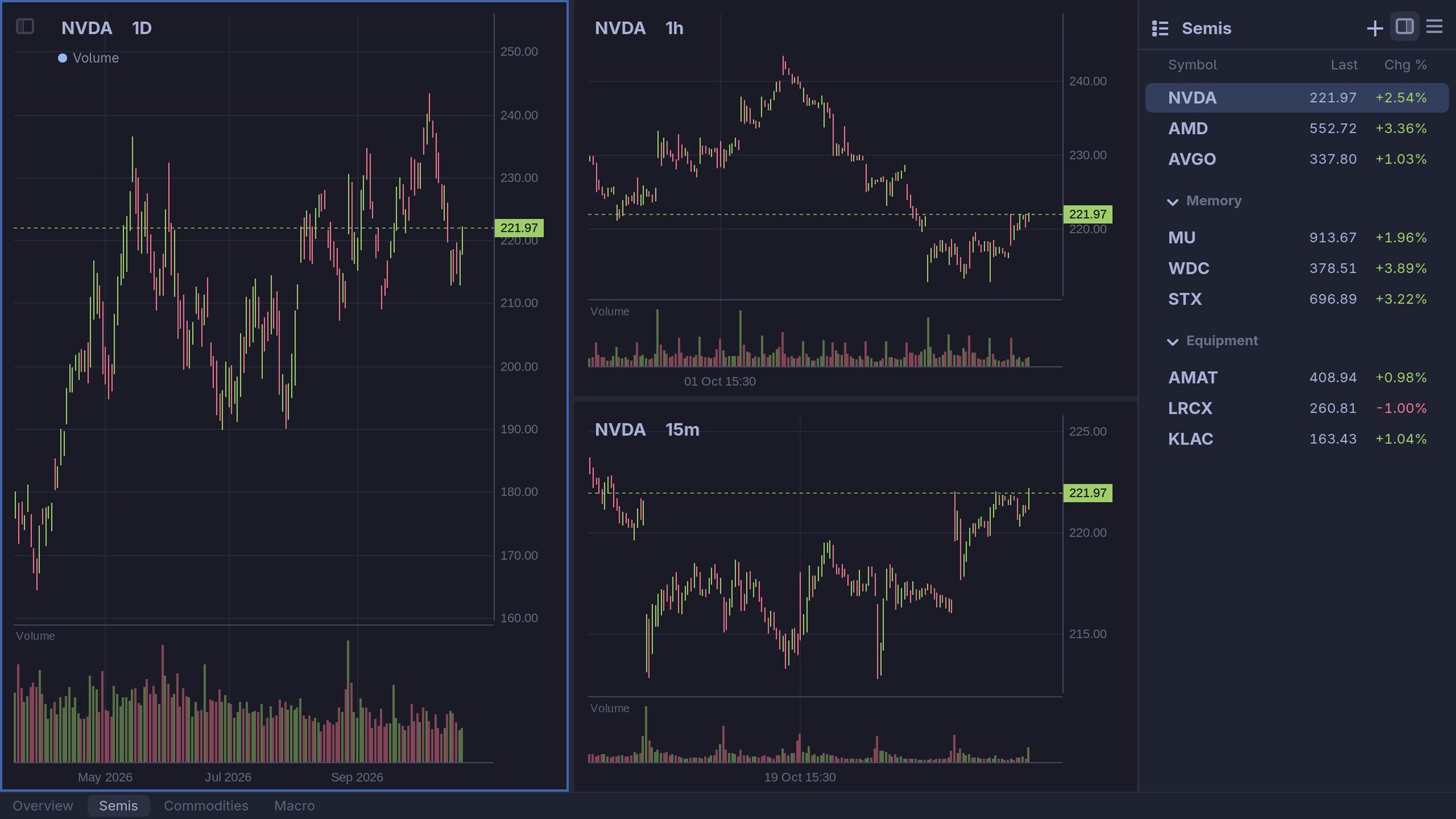
The strip
The strip is the row of chartbook tabs along the bottom of the window. It appears with the second chartbook and goes away when only one is left.
| Gesture | Does |
|---|---|
| Click a tab | Opens that chartbook. |
| Double-click a tab | Renames it in place. Enter or a click elsewhere keeps the name; Esc puts the old one back. |
| Drag a tab onto another | Moves it there. |
| Right-click a tab | Opens that chartbook and its menu. |
A chartbook you haven’t named is called Chartbook 1, Chartbook 2 and so on, by its place in the strip. Emptying the name in a rename gives the number back.
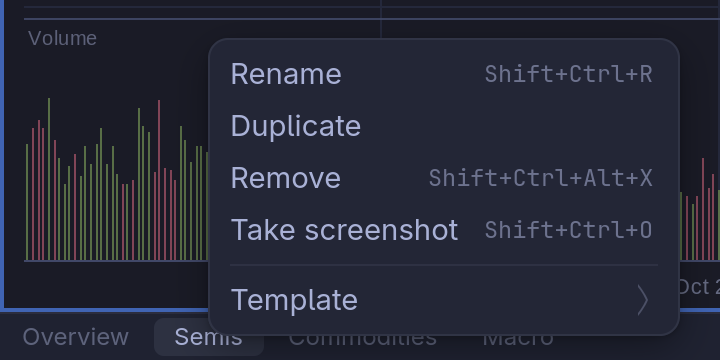
| Menu item | Does |
|---|---|
| Rename | The same rename a double-click starts. |
| Duplicate | A copy beside it, opened, with its name ready to type over. See Duplicating a chartbook. |
| Remove | Removes the chartbook and its charts, after asking. |
| Take screenshot | A picture of the whole chartbook. See Screenshots. |
| Template | None, the chartbook templates, Save as New Template… and Manage Templates…. See Chartbook templates. |
Keys
| Key | Does |
|---|---|
| Ctrl + N | New chartbook, while the keyboard is on a chart. In the sidebar the same key adds a symbol. |
| Ctrl + Shift + R | Renames the open chartbook, in its tab. With one chartbook there is no tab, and nothing happens. |
| Ctrl + Shift + Alt + X | Removes the open chartbook, after asking. |
| Ctrl + Alt + ← → | The previous or next chartbook, round the ends. |
New chartbook in the main menu opens the same dialog as Ctrl + N (The window).
A new chartbook
New chartbook asks for a name, a template and a watchlist, then opens the chartbook with one chart on the symbol the focused chart was showing.
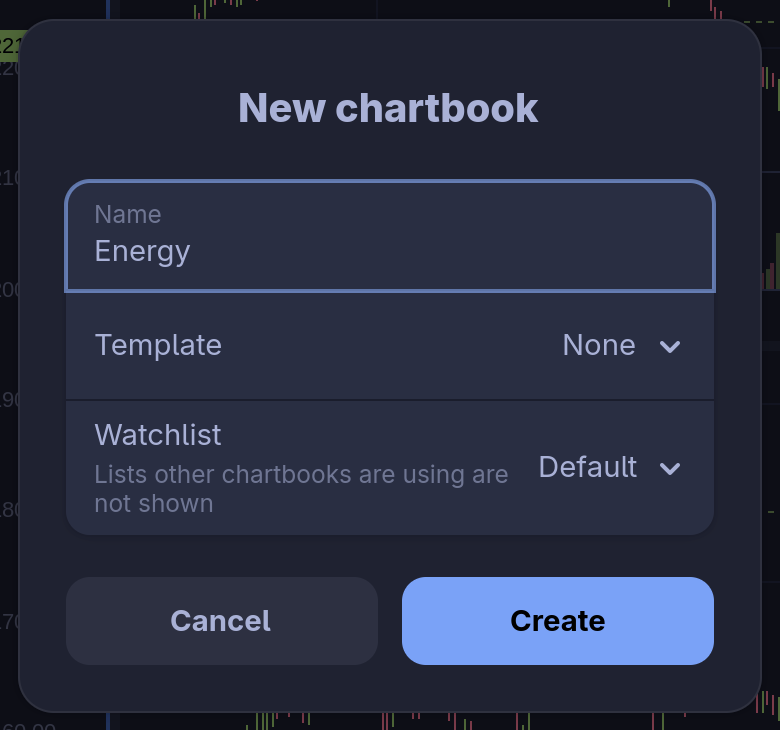
| Row | Does |
|---|---|
| Name | Filled in with the next number and selected, so typing replaces it. |
| Template | None, or a chartbook template to build the chartbook from and keep it on. Shown only once a template exists. |
| Watchlist | The list the sidebar shows. Lists other chartbooks are using are left out. The last choice, Create a new watchlist, makes an empty list named after the chartbook when Create is pressed. Cancelling leaves nothing behind. |
Enter in the name, or Ctrl + Enter anywhere, creates it. Esc cancels.
The chartbook’s watchlist
Each chartbook shows one watchlist, and keeps it when you come back to it. A list one chartbook is using can’t be given to another, except the default watchlist, which any number of chartbooks may show.
- Removing a chartbook frees its list for another.
- A chartbook whose list is deleted shows the default one.
- Picking another list in the sidebar gives it to the open chartbook. On the page of watchlists, a list another chartbook is using is dimmed and names that chartbook (Watchlists).
Duplicating a chartbook
Duplicate makes a copy of the chartbook beside the original, drawings and chartbook template included. The copy shows the default watchlist and opens as … copy, with the name ready to type over. The drawings that came with it are left as they were; its Send drawings to other charts switch acts only on drawings made on the copy (Drawings).
Removing a chartbook
Removing asks first, Semis and its 3 charts will be removed. This cannot be undone., with Cancel as the default. The chartbook beside it opens in its place. The last chartbook can’t be removed.