
Trading from a chart
In this chapter
Trading is experimental (Beta). An order is sent the moment you click, press or drag: nothing asks first, on any account.
A chart trades what it charts, on its account. ES, whichever feed draws it, trades its front month as Rithmic names it, such as ESZ6, and a chart of a dated contract, such as ESH7, trades that contract, through the account’s login (Trading services).
The Account part
With an account to trade on, the chart’s top-right corner leads with its trading parts, before the gear.

| Part | Shows, and does |
|---|---|
| Account | The account the chart trades on, and its trouble if any, such as signed out. Click it to choose another, listed by login. Shown only when there is more than one account |
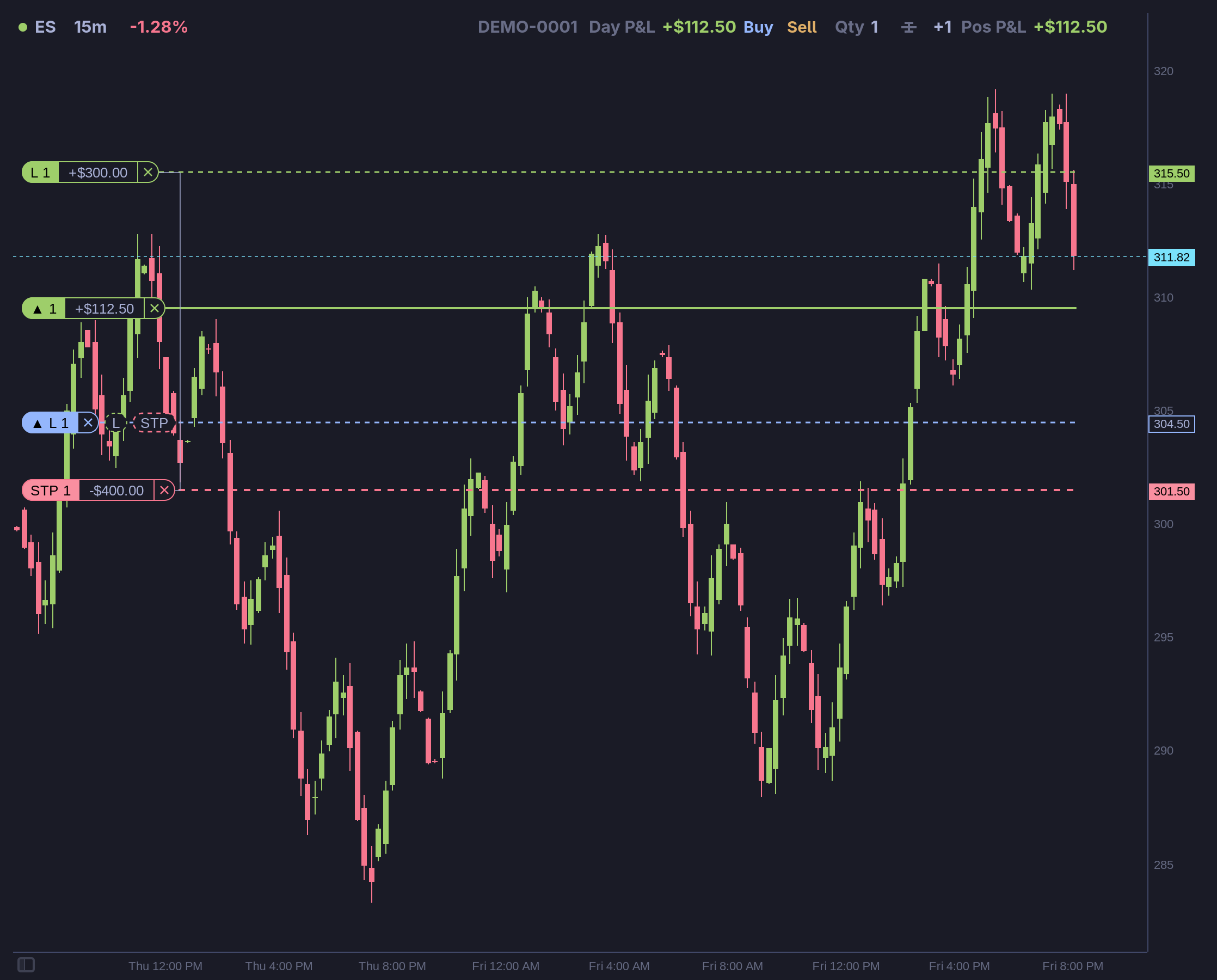
| Day P&L | The account’s P&L for the day, such as Day P&L +$112.50, in the profit or loss colour |
| Buy/Sell | Buy or sell the chart’s quantity at the market. Greyed out with the reason in the tooltip when the chart cannot trade. Taken out of the header, only the buttons go: the keys, the chart menu and the New order dialog still trade |
| Qty | The quantity orders are sent with. Click it for the others on offer and Edit quantities… |
| Order template | The chart’s order template, or only its icon with none. Click it to pick another |
| Current position | What the account holds in the contract, signed, such as +1 |
| Position P&L | That position’s open P&L, such as Pos P&L +$37.50, in the profit or loss colour |
A chart with no account of its own trades on the default one, and follows it when the default changes. Choosing the default account in the picker leaves it that way.
These are header parts, moved or removed in Preferences › Charts › Header (The header).
Quantities
Qty offers the quantities of a template: Futures offers 1 to 9 and Stocks 100 to 900. Ctrl + 1 to 9 picks the first to the ninth. The quantity is kept with the chart.
Edit quantities…, on the Qty menu or in Preferences › Trading, opens Quantities. Each template has a Name, its Quantities, what it Applies to (Stocks, Futures) and Only these symbols, such as MES, MNQ. A chart takes the narrowest template that applies to its symbol.
Trading another size
A chart can trade the other size of what it charts: MES on an ES chart, so the chart reads the full-size market and the orders go in micros. Set it in the chart’s settings › Trading › Trading symbol; its clear button trades the chart’s own symbol again. Only the other size of the chart’s market, or one of its contract months, is accepted.
Placing orders
| How | Sends |
|---|---|
| Buy or Sell in the header | The chart’s quantity at the market |
| Ctrl + B, Ctrl + S | The same, from the keyboard |
| Right-click the chart at a price | The menu offers a buy and a sell at the market, then the limit and the stop orders that price allows, such as Sell Limit 2 ESZ6 at 6,840.00 above the market and Sell Stop 2 ESZ6 at 6,800.00 below it |
A market order on its way shows beside the last price, such as Buying 2…, and a limit or a stop faint at its own price. What happens next is a short notice over the window and a line in the Log: Working · Sell Limit 2 ESZ6 at 6,840.00, Filled 1 ESZ6 at 6,824.25, or a rejection, which is an error.
The menu leaves out an order that could not go at that price, such as a buy limit above the market or past the day’s price limit. On a chart that cannot trade it has one greyed row that says why. One request per account is on its way at a time: another is refused with Not sent · the last order is still on its way.
Exits
The label of a position has two tabs, L and STP. Drag L to a price for a limit that takes the profit, and STP for a stop that cuts the loss. Each is for the whole position.
Place the second while the first is working and the two are linked: whichever fills first cancels the other, and the notice says Linked · whichever fills first cancels the other. A solid line joins two exits the trading service holds linked, as Rithmic does. A dashed one means Omacharts holds the link, only while it runs, and says so.
Order templates
Order templates are Beta. A template is a set of exits that go in with an order: any number of targets and of stops, or none of either. With one picked, every order the chart sends goes as a bracket, a market order too, and the exits are placed by the trading service as the entry fills. An order that closes some or all of the position goes without them, and the Log says so. On Sierra Chart, Omacharts places the exits itself as the entry fills, each target and stop as a pair Sierra Chart then holds, so the exits go in only while Omacharts runs. The template’s tooltip in the chart’s header says so.
Edit order templates…, on the header’s template menu or in Preferences › Trading › Order entry, opens Order templates. Add a template starts one as Target and stop, Half off, Runner or Stop only, named after it; click one to change its Name and its exits, drag the handle to put the templates in order, and the bin removes one. Each exit says how far it goes, in one of three ways:
| Mode | How far |
|---|---|
| Ticks | That many ticks from the fill |
| Money | Where the whole order makes, or loses, that much, whatever the exit itself closes. It starts at the Value of 1R |
| R | The same, in multiples of R: 1 to begin with, fractions such as 0.5 or 1.5 allowed, R being Preferences › Trading › Value of 1R. A stop at 1R loses 1R on the whole order if it is hit, one at 0.5R half of it; a target at 2R makes twice it. With R at $500, an exit at 1R and one at $500 rest at the same price |
Every distance rounds toward the entry, and is never under one tick.
Each exit also says how much it closes: a number of contracts, the default; a share of position, such as 1/2, or one typed as 33% or 0.33; or the rest, All on a group’s first exit and Rest after it. The position is the order’s own quantity as it fills, the contracts its exits protect: a template on an order that adds to a position brackets that order only, and one that reduces it goes plain. Exits are sized top to bottom, shares rounding down as they add up, so two exits of 1/2 on a 3-lot close 1 and 2, and an exit left with nothing is not sent.
Sizes need not add up. A group may close less than the position, and that part has no exit of its kind: under the group, the editor says so, as a warning for stops. It also says under how many contracts an order goes without one of its exits, and when a group asks for more than the position.
For example, Half off stops all of the position at 1R and takes half of it off at 1.5R, leaving the other half to run without a target: with R at $500, a 2-lot of ES filled at 6,000.00 rests its stop at 5,995.00 and a 1-contract target at 6,007.50. On a 1-lot the half is nothing, so only the stop is sent, and the editor says Orders under 2 contracts go without the target. Add a target sized Rest to take the other half off too.
A template with no exits, or none left on the order’s quantity, sends the order plain, and the Log says so.
On a chart
The template part of the header, at its right, shows the chart’s template, or only its icon with none. Its menu lists No template and the templates in order, and Ctrl + Shift + 1 to 9 picks the first to the ninth; Ctrl + Shift + 0 is no template. The template is kept with the chart.
On a working order
A limit or stop entry that has not begun to fill can be given a template three ways: the Order template submenu in the right-click menu on its line, the Template in the New order dialog, or by clicking the order to pick it out (it is drawn raised) and pressing Ctrl + Shift and the template’s digit. Its exits are drawn faint where they will rest, and the template’s name beside it. No template, or Ctrl + Shift + 0, takes them off.
An entry with no target or no stop wears the missing tabs, as a position does: drag L or STP off it to a price, and that exit goes in with it for the whole order. Dragging an exit already drawn moves it.
Giving an entry exits, or changing them, cancels it and sends it again as one bracket, so it loses its place in the queue. If it fills before the cancel lands, nothing is sent again, and the Log says so. Omacharts remembers which template an entry was sent with only while it runs.
The New order dialog
Ctrl + Shift + E opens New order, for the focused chart’s account and contract: Side, Type (Market, Limit or Stop, those the trading service takes), Quantity, which starts at the chart’s, Price, which starts at the last trade, and Template, which starts at the chart’s. Its button says the order, such as Buy 2 ESZ6 at 6,810.00, and sends it through the chart’s own checks.
Moving, cancelling and flattening
| To | Do |
|---|---|
| Move an order | Drag its line. While dragging, the label says where it goes and how far, such as 6,840.00 · +11 ticks, an exit says what the whole position makes or loses at that price, however much of it the exit closes, as its label does once it rests there, and either says why where it could not go, such as Stop above market · not allowed. What stays at the old price, its line, label and tab, is drawn faint until it is let go |
| Cancel an order | The × on its line, or its Cancel item, such as Cancel Sell Limit 2 ESZ6 at 6,840.00, in the right-click menu on the line |
| Flatten | The × on the position closes it at the market and cancels its exits. Ctrl + F closes it and cancels every working order in the contract |
Whether order labels sit at the chart’s left or right is Preferences › Trading › Order labels. Show P&L as there writes the P&L on the chart in money or in R (Orders and P&L on charts).
Executions on the chart
Turn on the chart’s settings › Trading › Show fills to mark the account’s executions on the chart, up to 30 days back. A triangle marks each fill, pointing right for one that opened or added and left for one that closed, in the theme’s up colour for a buy and down colour for a sell. A dotted line joins an entry to its exit, coloured by whether it won or lost. The switch is kept with the chart.
Keys
| Key | Does |
|---|---|
| Ctrl + B | Buy the chart’s quantity at the market |
| Ctrl + S | Sell the chart’s quantity at the market |
| Ctrl + F | Flatten the chart’s contract and cancel its working orders |
| Ctrl + 1 … 9 | Pick the quantity, first to ninth |
| Ctrl + Shift + A, P, O | Show or hide the accounts, positions or orders (The Trading panel) |
| Ctrl + Shift + E | New order (The New order dialog) |
| Ctrl + Shift + 1 … 9 | Pick the order template, first to ninth; with a working order picked out, give it that template (Order templates) |
| Ctrl + Shift + 0 | No order template, on the chart or the picked order |
The first four act on the focused chart, and never while you are typing in a box. Until there is a trading login, none of these keys does anything.
From the CLI
omacharts trading buy, sell, exit, modify, cancel and flatten act as the chart does, through the same checks. chart set --account, --quantity, --trading-symbol, --order-template and --show-fills set a chart’s trading, trading quantities the quantities, trading templates the order templates, and trading bracket gives a working order one (The CLI › Trading).